


- Posts: 2247
- Thank you received: 163


October Challenge: Horror rework
September entries: Legend
The shoutbox is unavailable to non-members
Shoutbox History
 System
Auto message: A new forum post has been submitted. You can view the message here
18 hours ago
Stoopid dart eels. And amber fishing spots. And distant loot bags all the way back where I started with only a piece of fur in them. 
19 hours ago
Important, change your password!
Go here for further information: https://cgartnexus.com/index.php/forum/announcements/840-hacked
Basic Software tips and usage.
- Digital Dave
-
- Offline
- Platinum Member
-

Less
More
09 Mar 2015 00:42 #9459
by Digital Dave
I get sketchy around pencils! ...
Replied by Digital Dave on topic Basic Software tips and usage.
I watched the first video above, and admit it was pretty cool to see all the stuff that was incorporated into it's making, meaning all the steps/adjustments that were taken by the artist to get the end result. ... But at the same time, it all seemed quite complicated. I only say that because I don't use most of those functions, or even know how they work because of this. - With the exception of maybe adding some minor textures using an overlay, (which is also still rare) I prefer to simply paint what I want to see manually, myself. ... Sure, I know I can probably never get an image to look as good as someone who knows how to properly use all those functions, I still somehow feel I'm cheating. If anything, myself for not just doing it by hand.
I will say that I can see these functions being quite useful to the artist who needs to punch out work quickly, or for getting ideas out, or making modifications on the fly for a client's review. - So maybe it's just because I do art for fun, and not for a living? I can't say for sure? ... I do know that I wouldn't mind knowing a little more about using layer mask. Since it appears one can still manually work on a image, without just simply applying a function or design. (which also preserves the image in case you don't like the effect?) If my understanding of it's use is correct?
I will say that I can see these functions being quite useful to the artist who needs to punch out work quickly, or for getting ideas out, or making modifications on the fly for a client's review. - So maybe it's just because I do art for fun, and not for a living? I can't say for sure? ... I do know that I wouldn't mind knowing a little more about using layer mask. Since it appears one can still manually work on a image, without just simply applying a function or design. (which also preserves the image in case you don't like the effect?) If my understanding of it's use is correct?
I get sketchy around pencils! ...
Please Log in or Create an account to join the conversation.


09 Mar 2015 10:27 #9464
by Banj
A layer mask hides or reveals areas of the associated layer by painting either black or white in the mask (or any grey value in between). Layer masks are very useful for any kind of image manipulation or texture work. For instance the example Dom posted on the previous page where he uses selections for painting a texture, I would use layer masks on something like that because it's non-destructive (you can go back and edit the mask at any time by selecting it and painting in it).
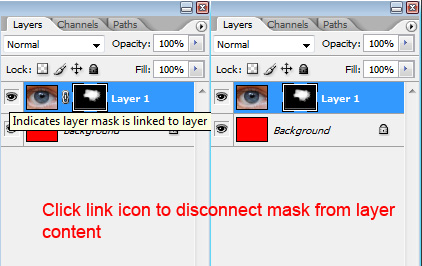
Another advantage is that you can detach the mask from the contents of the layer (clicking the little links icon between the layer thumbnail and the mask), and can then move the contents of the layer independently of the mask. The mask remains where it is, but you can move the layer around inside it to reveal/hide a different part of the layer.
Replied by Banj on topic Basic Software tips and usage.
Digital Dave wrote: I wouldn't mind knowing a little more about using layer mask. Since it appears one can still manually work on a image, without just simply applying a function or design. (which also preserves the image in case you don't like the effect?) If my understanding of it's use is correct?
A layer mask hides or reveals areas of the associated layer by painting either black or white in the mask (or any grey value in between). Layer masks are very useful for any kind of image manipulation or texture work. For instance the example Dom posted on the previous page where he uses selections for painting a texture, I would use layer masks on something like that because it's non-destructive (you can go back and edit the mask at any time by selecting it and painting in it).
Another advantage is that you can detach the mask from the contents of the layer (clicking the little links icon between the layer thumbnail and the mask), and can then move the contents of the layer independently of the mask. The mask remains where it is, but you can move the layer around inside it to reveal/hide a different part of the layer.
Please Log in or Create an account to join the conversation.
09 Mar 2015 10:32 #9465
by kazky
Replied by kazky on topic Basic Software tips and usage.
screeeeeenshots please? 
Please Log in or Create an account to join the conversation.
09 Mar 2015 10:41 #9466
by Banj
Replied by Banj on topic Basic Software tips and usage.
I will sort out some screen shots.
Please Log in or Create an account to join the conversation.
09 Mar 2015 10:43 #9467
by kazky
Replied by kazky on topic Basic Software tips and usage.
fab thanks banj
Please Log in or Create an account to join the conversation.
09 Mar 2015 11:53 - 09 Mar 2015 13:48 #9468
by Banj
Replied by Banj on topic Basic Software tips and usage.
Layer Masks rough guide
(I'm using Photoshop CS2 here, but the same should apply to other versions)
Here I have 2 layers, a background layer filled with red, and a photo of an eye above it.
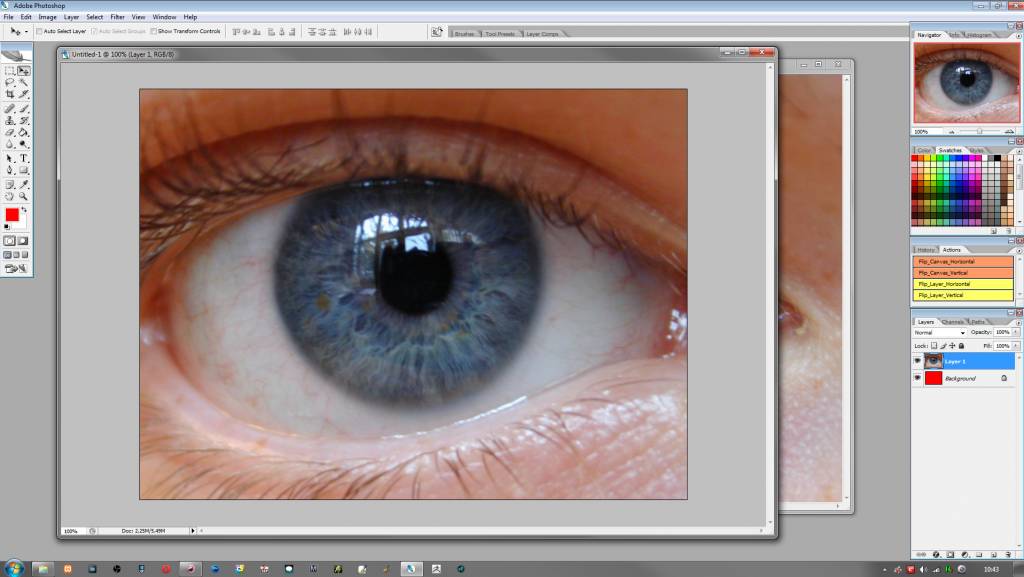
To apply the layer mask click the icon at the bottom of the layer palette and a mask icon will appear next to the layers thumbnail. (The mask is currently selected denoted by the highlight around the thumbnail).
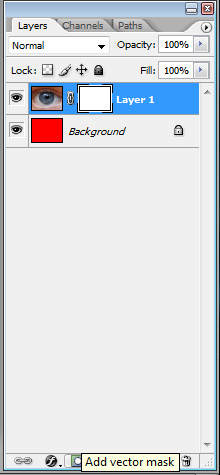
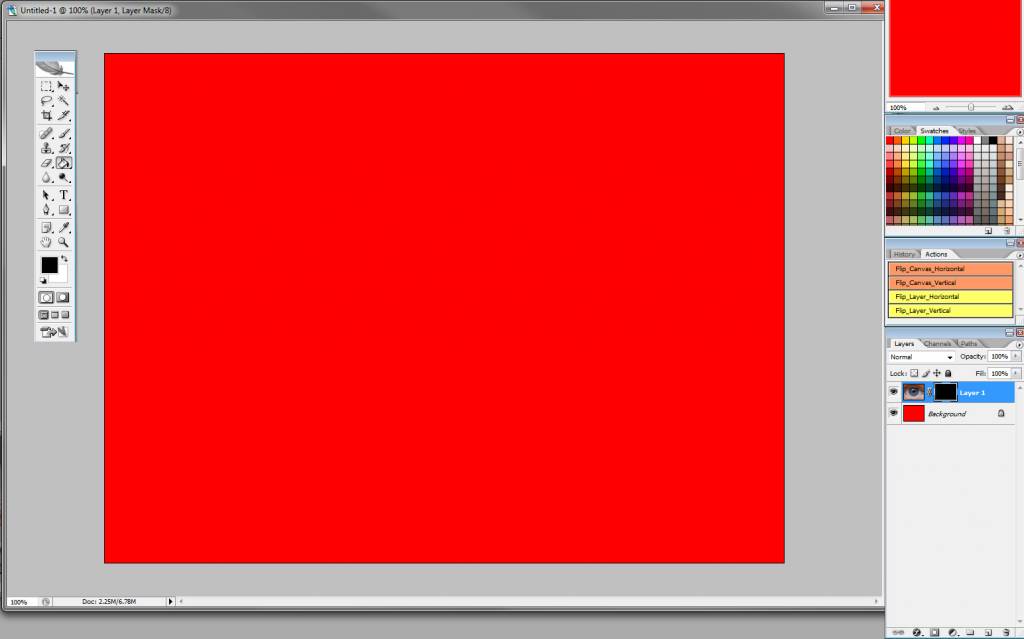
By default the mask will be applied filled with white. As white in the mask reveals the contents of the layer, all of the eye layer is visible. To hide parts of the layer you need to paint a value other than white (black will completely hide). So here (with the mask selected) I use the fill tool and fill the mask with Black fully revealing the red base layer below. You could use a brush and paint out areas if you wanted, I'm using the fill for demonstration purposes.
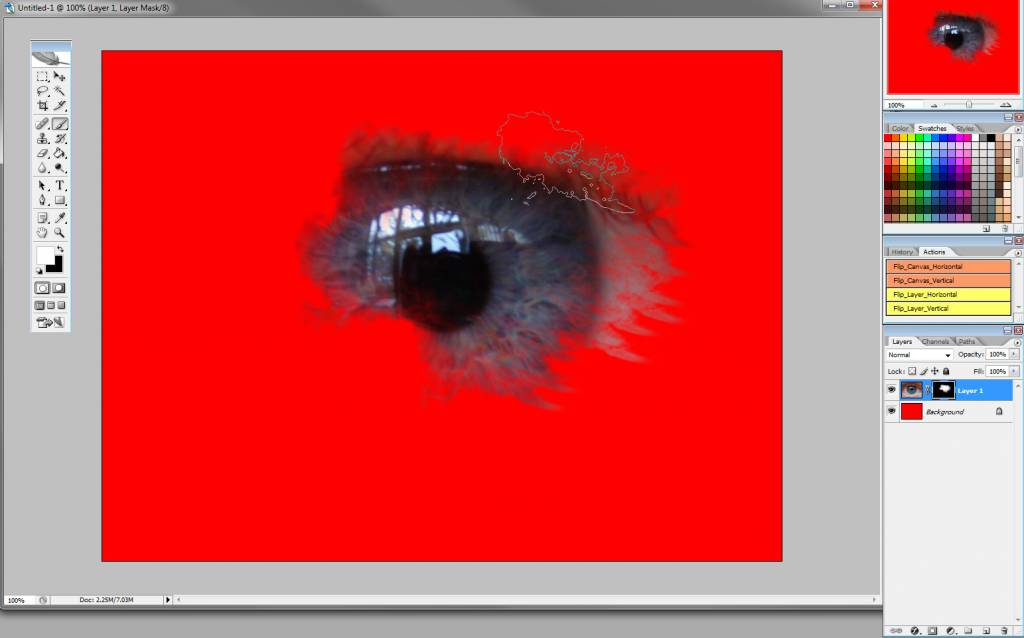
Now I can paint back white into the mask to reveal the hidden eye photo again. I'm using a custom brush here to show that you aren't restricted to a solid black or white and can achieve some interesting textures.
Another option you can use is to disconnect the link between the mask and the contents of the layer. This means the layer mask will remain where it is and still affect the same area of the canvas, but I can manipulate the photo layer independently. This is done by clicking on the links icon between the 2 thumbnails (it can be reversed at any time by clicking the space again.
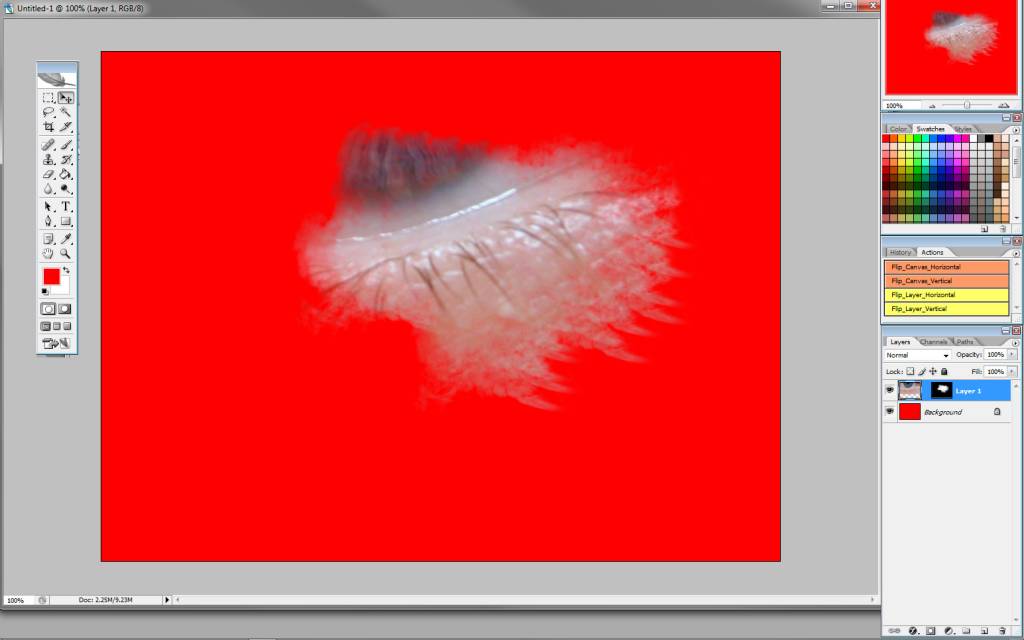
I can take the move tool (V) and pan the photo around while the layer mask stays put.
If I reattach the link and move the layer again, the mask follows along with it (note this photo was larger than the canvas size to begin with so the edge of the mask (which is the same size as the canvas), is now seen.
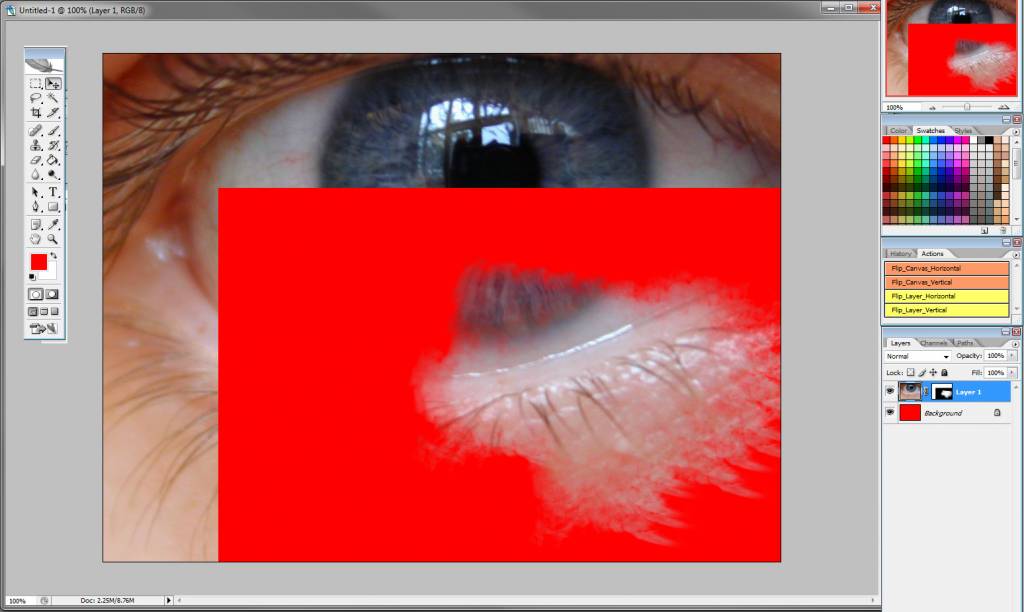
You can delete the mask at any time the same as you do with a layer and Photoshop will ask you if you want to keep or discard the effect of the mask. You can also view the mask properly by ALT clicking on the mask thumbnail and paint into it directly while it's visible (ALT clicking on the mask thumbnail or the image thumbnail will return you to the canvas view).
(I've run out of attachments to show that, but it's basically displaying the black and white mask as it would an ordinary layer)
(I'm using Photoshop CS2 here, but the same should apply to other versions)
Here I have 2 layers, a background layer filled with red, and a photo of an eye above it.
To apply the layer mask click the icon at the bottom of the layer palette and a mask icon will appear next to the layers thumbnail. (The mask is currently selected denoted by the highlight around the thumbnail).
By default the mask will be applied filled with white. As white in the mask reveals the contents of the layer, all of the eye layer is visible. To hide parts of the layer you need to paint a value other than white (black will completely hide). So here (with the mask selected) I use the fill tool and fill the mask with Black fully revealing the red base layer below. You could use a brush and paint out areas if you wanted, I'm using the fill for demonstration purposes.
Now I can paint back white into the mask to reveal the hidden eye photo again. I'm using a custom brush here to show that you aren't restricted to a solid black or white and can achieve some interesting textures.
Another option you can use is to disconnect the link between the mask and the contents of the layer. This means the layer mask will remain where it is and still affect the same area of the canvas, but I can manipulate the photo layer independently. This is done by clicking on the links icon between the 2 thumbnails (it can be reversed at any time by clicking the space again.
I can take the move tool (V) and pan the photo around while the layer mask stays put.
If I reattach the link and move the layer again, the mask follows along with it (note this photo was larger than the canvas size to begin with so the edge of the mask (which is the same size as the canvas), is now seen.
You can delete the mask at any time the same as you do with a layer and Photoshop will ask you if you want to keep or discard the effect of the mask. You can also view the mask properly by ALT clicking on the mask thumbnail and paint into it directly while it's visible (ALT clicking on the mask thumbnail or the image thumbnail will return you to the canvas view).
(I've run out of attachments to show that, but it's basically displaying the black and white mask as it would an ordinary layer)
Last edit: 09 Mar 2015 13:48 by Banj.
Please Log in or Create an account to join the conversation.
09 Mar 2015 12:07 #9469
by kazky
Replied by kazky on topic Basic Software tips and usage.
that's brilliant banj, really easy to understand info. Thanks for that
Please Log in or Create an account to join the conversation.
Facebook Feed
Member Statistics
- Total Users: 228
- Latest User: DanielWilson
- Online Users: 0
- Users Today: 0
- Users this Week: 0
- Users this Month: 0
- Users this Year: 2
NOTE! This site uses cookies and similar technologies.
By using this website you agree to the use of cookies and related data storage as detailed in our privacy policy. Learn more
I understand
Site design Mad Hamster Studios. All content is protected under © and the property of the various contributers and not to be reproduced without permission of the creator.