

October Challenge: Horror rework
September entries: Legend
The shoutbox is unavailable to non-members
Shoutbox History


Important, change your password!
Go here for further information: https://cgartnexus.com/index.php/forum/announcements/840-hacked
Posting Images - for dummies like me

08 Jul 2014 10:54 - 11 Jul 2014 08:12 #1078
by Charlotte
Any an all misspellings are henceforth blamed on the cats.
Posting Images - for dummies like me was created by Charlotte
Since it took me a few days to get things straight when it comes to adding images to posts in this forum, I thought I'd better make a small guide. Not that it's difficult. It's super-easy! I'm just a bit daft sometimes, is all...
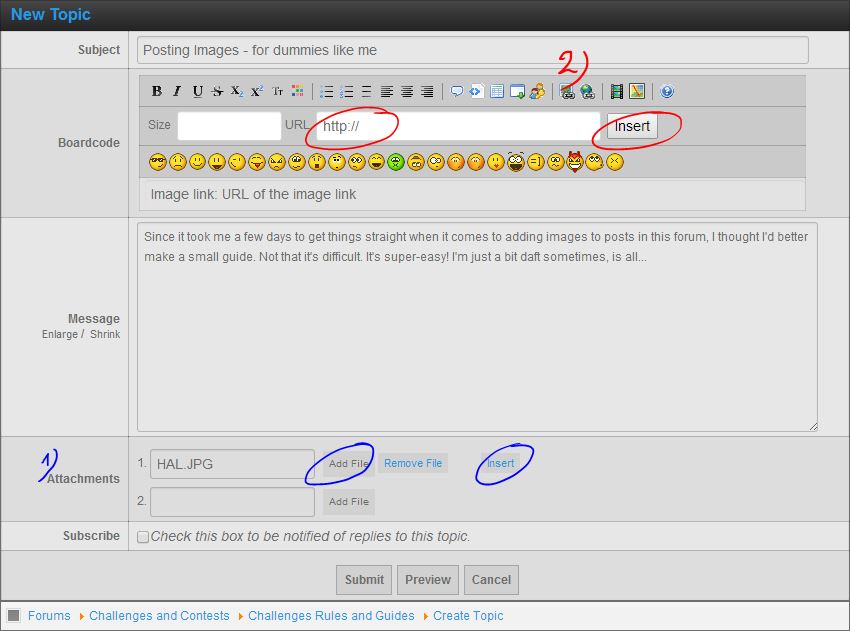
Upload image to forum (Attach file)
Below your message window is a place where you can attach files (blue 1). Just click add file, browse your computer to choose the image you want and then click the Insert button. This will show the image inside your message and you can move the code around to place it where you want it in your text - not inserting the images will attach it as a small thumbnail at the bottom of the post, which people have to click to view full size.
When you add a file, a new row to add another file is automatically added.
If you chose the wrong file, click Remove file before you choose a new image (otherwise it won't update).
Remember that attachments are limited to 512 kB and max 1024 pixels in size.
Include Remotely Hosted Images
You can also include remote hosted images from e.g. your website or Photobucket. If your file is remote, click the Image link icon (red 2) and you'll be able to add the url of the image. Again click Insert if you want the image to display in the post.
You should also be able to use bbCode directly if you prefer. The code for an image would look like this:
[ img ] image url [ /img]
(but without the spaces)
Include Gallery Images
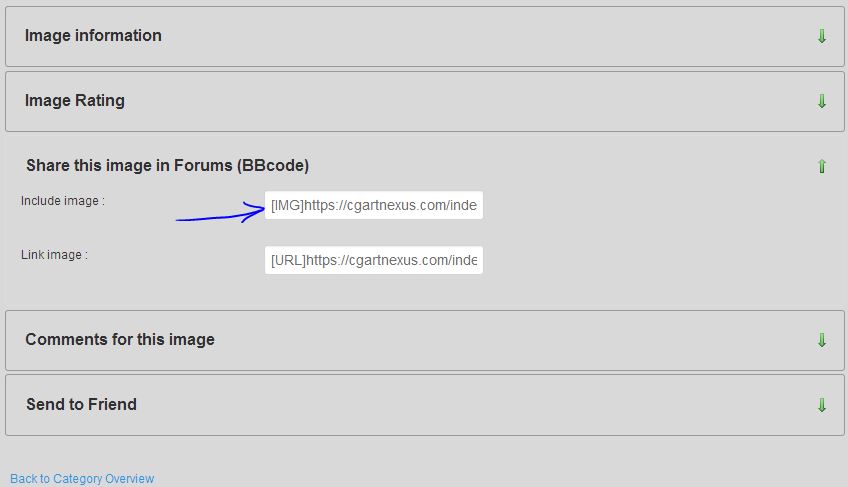
Below each image in the cgartnexus gallery you have a selection of information etc about the image. Here you can open the selection called Share this image in forums, to find the bbCode needed. Paste the code into your post in the forum and you're done!
Gallery images are limited to 1,5 Mb and should be less than 1500 pixels in size.
A note on uploading to the Gallery. There's a box asking "Published, yes or no?" This means, do you want to publish the image in the gallery so say yes! Because that's why you're uploading. It's a silly and easily misunderstood question. First time I uploaded I said "no" because I thought it meant "has this image been published elsewhere already". That's not what it means, though! So it should be "Publish - Yes".
Upload image to forum (Attach file)
Below your message window is a place where you can attach files (blue 1). Just click add file, browse your computer to choose the image you want and then click the Insert button. This will show the image inside your message and you can move the code around to place it where you want it in your text - not inserting the images will attach it as a small thumbnail at the bottom of the post, which people have to click to view full size.
When you add a file, a new row to add another file is automatically added.
If you chose the wrong file, click Remove file before you choose a new image (otherwise it won't update).
Remember that attachments are limited to 512 kB and max 1024 pixels in size.
Include Remotely Hosted Images
You can also include remote hosted images from e.g. your website or Photobucket. If your file is remote, click the Image link icon (red 2) and you'll be able to add the url of the image. Again click Insert if you want the image to display in the post.
You should also be able to use bbCode directly if you prefer. The code for an image would look like this:
[ img ] image url [ /img]
(but without the spaces)
Include Gallery Images
Below each image in the cgartnexus gallery you have a selection of information etc about the image. Here you can open the selection called Share this image in forums, to find the bbCode needed. Paste the code into your post in the forum and you're done!
Gallery images are limited to 1,5 Mb and should be less than 1500 pixels in size.
A note on uploading to the Gallery. There's a box asking "Published, yes or no?" This means, do you want to publish the image in the gallery so say yes! Because that's why you're uploading. It's a silly and easily misunderstood question. First time I uploaded I said "no" because I thought it meant "has this image been published elsewhere already". That's not what it means, though! So it should be "Publish - Yes".
Any an all misspellings are henceforth blamed on the cats.
Last edit: 11 Jul 2014 08:12 by Charlotte. Reason: additional info
Please Log in or Create an account to join the conversation.
Facebook Feed
Member Statistics
- Total Users: 228
- Latest User: DanielWilson
- Online Users: 0
- Users Today: 0
- Users this Week: 0
- Users this Month: 0
- Users this Year: 2
NOTE! This site uses cookies and similar technologies.
By using this website you agree to the use of cookies and related data storage as detailed in our privacy policy. Learn more
I understand
Site design Mad Hamster Studios. All content is protected under © and the property of the various contributers and not to be reproduced without permission of the creator.